Microsoft Word
Introduction
The purpose of this manual is to detail how to configure and integrate Qflow with Microsoft Word, allowing the creation of customized documents using Word templates. This connector allows you to generate documents by replacing predefined tags with specific values, as well as tags of the form {{Data: value}} within the document with application data, with the option to apply specific formatting. It also supports the use of the {{Role: Role Name}} tag, which is automatically replaced with the names of all the members of the corresponding role. It is ideal for automatically generating contracts, invoices, letters, and other customized documents.
Microsoft Word has the following actions:
Formats
Values of type DateTime, Date, Time, or numeric types can have a custom format applied to change how they are displayed.
The syntax to apply a format consists of adding a | (vertical bar) after the tag name, followed by the desired format.
Below are examples of different data types with their applied formats:
Data |
Format |
Sample data |
Syntax |
Result |
|---|---|---|---|---|
Full date and time |
dd/MM/yyyy HH:mm |
2025-07-08 09:35:00 |
{{DateTime | dd/MM/yyyy HH:mm}} |
08/07/2025 09:35 |
Date only |
yyyy-MM-dd |
2025-07-08 |
{{Date | yyyy-MM-dd}} |
2025-07-08 |
Time only |
HH:mm |
09:35:00 |
{{Time | HH:mm}} |
09:35 |
Decimal |
0.00 |
1234.5 |
{{Decimal | 0.00}} |
1234.50 |
Percentage |
P |
0.75 |
{{Percentage | P}} |
75.00 % |
You can refer to the date format documentation or the numeric format documentation for more information.
Prerequisites
It is necessary to have a Word template containing the tags to be replaced, loaded as an application data of type “Document”.
Actions
The following action can be performed with Microsoft Word:
Create customized documents with templates
This action allows you to generate a new document from a Word template by replacing tags with specific values provided in the configuration or loaded as application data, with the option to apply specific formatting using the “|” symbol followed by the desired format.
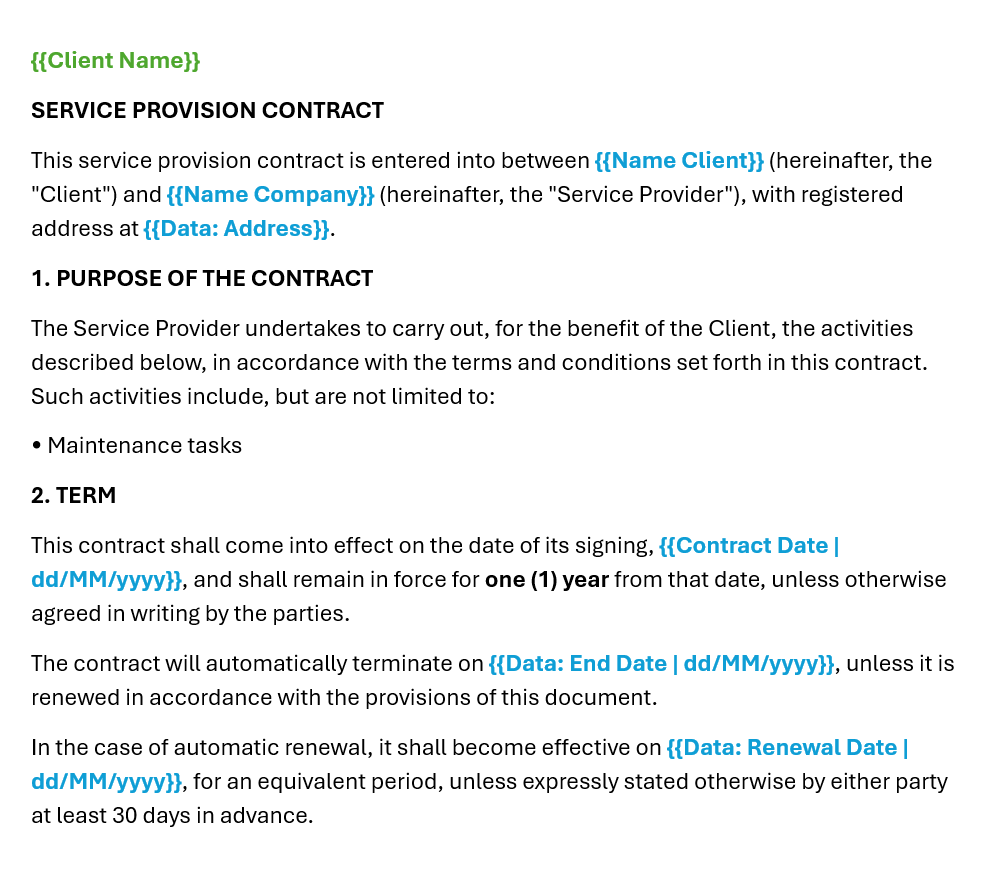
Fig. 1273 Sample contract template in Microsoft Word with tags for automatic replacement.
Input |
Description |
|---|---|
Word Template |
Required. Word template to be used to generate the document, the application data must be of type “Document”. |
Values to replace tags |
Dictionary that maps each tag in the document to the value that will replace it. The values can be text, application data, or formatted values such as dates. Examples: {{Company}} = Company name, {{Date | dd/MM/yyyy}} = 06/30/2025. |
Name of the resulting file |
Name to be given to the generated file. If no name is specified, a new version of the original document will be created. |
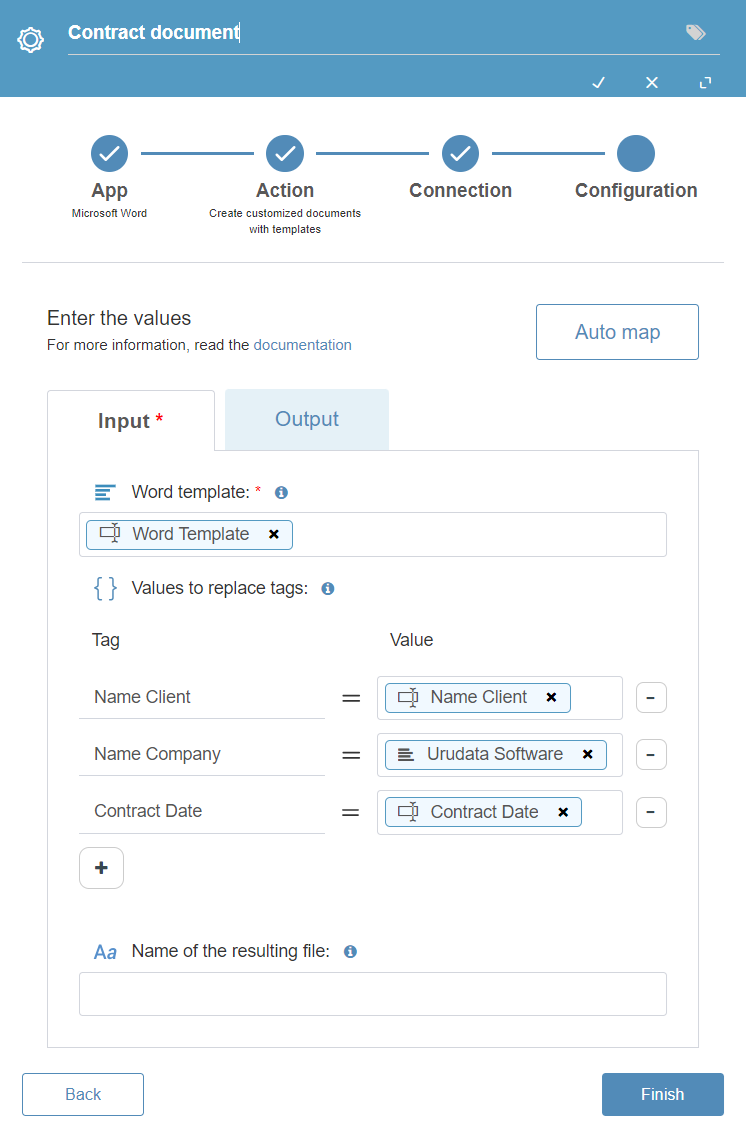
Fig. 1274 Input configuration.
Output |
Description |
|---|---|
Document generated |
This output parameter must be an application data of type Document. It contains the resulting Word document after replacing the template tags. If not specified, the generated document will be automatically saved in the process attachments. |
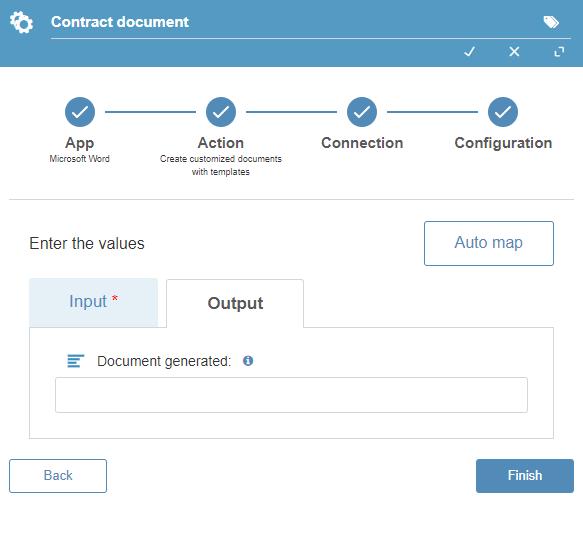
Fig. 1275 Output configuration.
Once these values have been configured, the connector will generate a new Word document with the tags replaced by the corresponding values
Notice on external integrations
Integrations with external platforms depend on the policies, conditions, and technical characteristics defined by their respective providers. Any changes to those services (including APIs, integration mechanisms, functionalities, and costs) are outside the control of Qflow.