Qflow AI
Introduction
The purpose of this manual is to detail how to configure and integrate Qflow with the Qflow AI connector, describing each of the actions it offers for intelligent document processing using artificial intelligence and how to incorporate them into processes.
The connector has the following actions:
Actions
The following actions can be performed with Qflow AI:
Generate summary
This action allows you to generate a summary of a PDF document using artificial intelligence.
Input |
Description |
|---|---|
Document |
Required. Enter the name of the document type data that will contain the PDF file you want to summarize. The document can have a maximum of 30 pages. |
Additional context |
Optional. Enter additional instructions for generating the summary. For example, “pay closer attention to the sections of the document that discuss artificial intelligence”. |
Summary length |
Optional. Enter a number between 1 and 10 that determines the length of the summary (1=short, 10=long). By default, 5 will be used. |
Output |
Description |
|---|---|
Summary |
Enter a text type data that will contain the summary of the PDF document generated by artificial intelligence. |
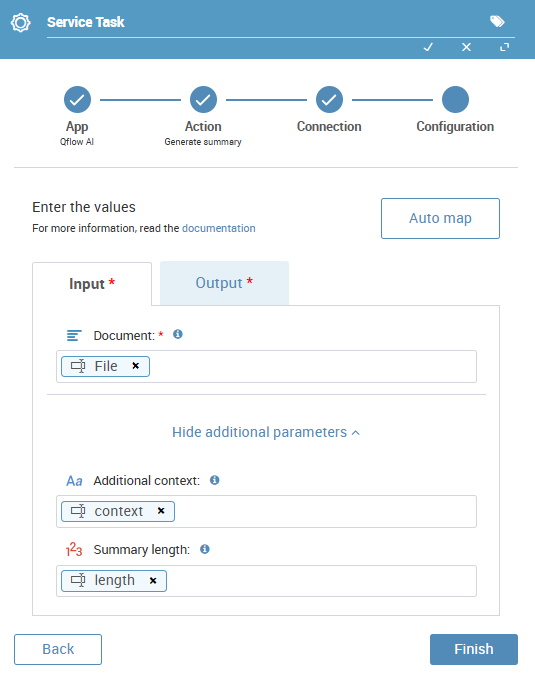
Fig. 1306 Input configuration for Generate summary
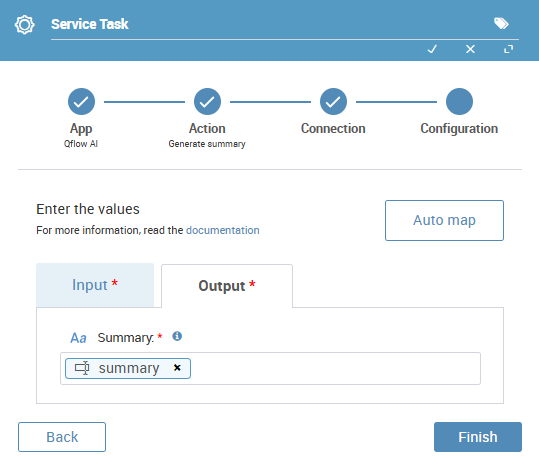
Fig. 1307 Output configuration for Generate summary
Extract data
This action allows you to extract specific data from a PDF document or image using artificial intelligence.
Input |
Description |
|---|---|
File |
Required. Enter the name of the document type data that will contain the PDF file or image from which data will be extracted. The document can have a maximum of 10 pages. Supported image formats are: PNG, JPG, WEBP, GIF, and BMP. |
Additional context |
Optional. Enter additional instructions for data extraction. For example, “In the contador_filas tag, count how many rows the invoice has”. |
Output |
Description |
|---|---|
Data to extract from the file |
Required. Configure the list of tags that will be searched in the file and saved in the corresponding data. Enter the tag name on the left and insert the corresponding data on the right. The data can be of type text, date and time, date, True/False, or numeric. |
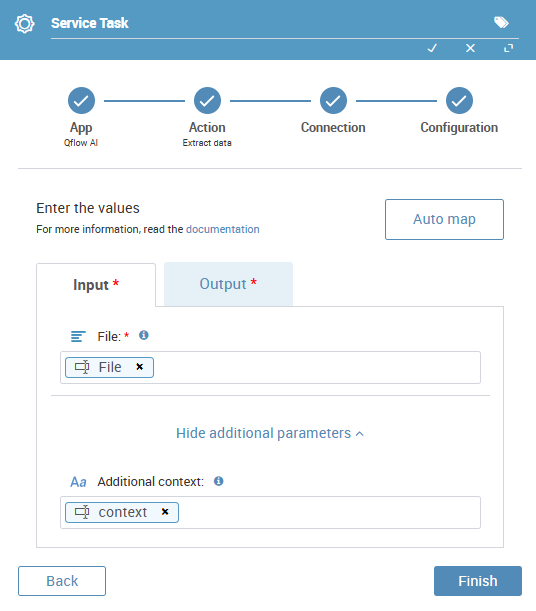
Fig. 1308 Input configuration for Extract data
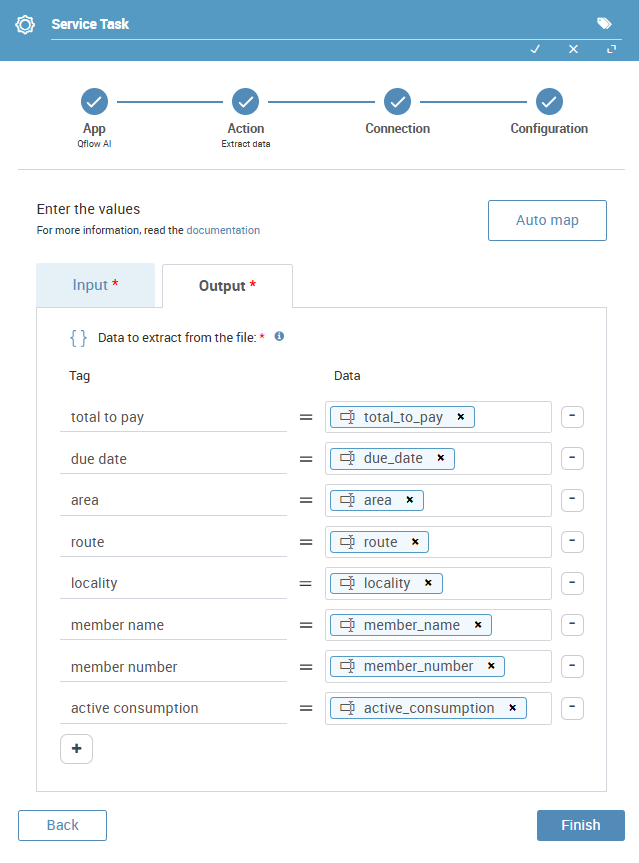
Fig. 1309 Output configuration for Extract data
Classify text
This action lets the system indicate, within a set of defined categories, which one(s) best match a piece of process text. The categories (labels) are configured, the text to analyze is linked, and the result storage is chosen; the step returns the labels that apply and, if desired, an indication of how reliable each assignment is.
Input |
Description |
|---|---|
Text |
Required. The content to classify: specify the process data whose value should be evaluated against the labels you configure below. That value must have content when the step runs; if it is empty or only whitespace, the step cannot complete successfully. |
Labels |
Required. Define at least two categories to choose from. Each row is one label: the Name column is the label used to decide whether the text applies to that category; the Description column gives extra context to interpret that label correctly. The Description column must be completed in every row and must match the names. You cannot save or publish the step if there are no labels, fewer than two, or any name or description is empty or only spaces. |
Context |
Optional. Extra text that helps provide general context or additional information when needed. |
Multi-label |
Optional. Turn this on if the text can belong to several categories at once. If you do not configure it, multi-label mode is not used (the result behaves as a single classification value according to your setup). |
Output |
Description |
|---|---|
Result |
Required. Process data where the chosen labels for the text will be stored. Depending on how you combine multi-label and the data type you select, the result can appear as a single value or split across several values aligned with each applicable label. |
Confidence scores |
Optional. Shows how reliable the result is for each label (score from 1 to 10: higher values mean a more confident assignment to that category). If the step returns several labels and the output is stored in multi-valued data, you can have one confidence value per label, in the same order. If the output data only allows one value, you will see one confidence score associated with that single result. |
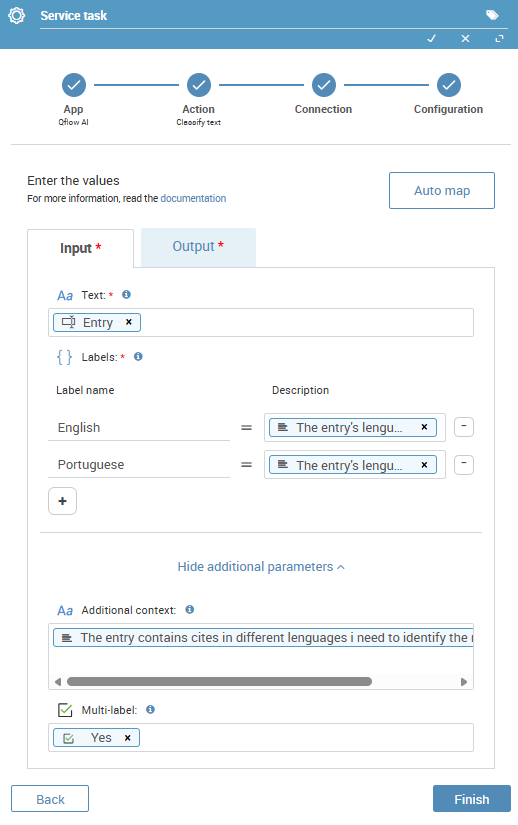
Fig. 1310 Input configuration for Classify text
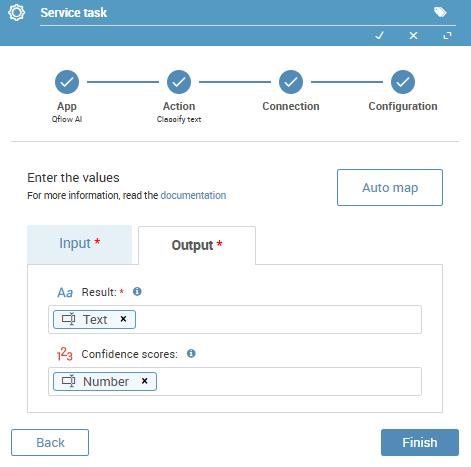
Fig. 1311 Output configuration for Classify text
Classify document
This action lets the system indicate, within a set of defined categories, which one(s) best match a process document. The categories (labels) are configured, the document to analyze is linked, and the result storage is chosen; the step returns the labels that apply and, if desired, an indication of how reliable each assignment is.
Input |
Description |
|---|---|
Document |
Required. The file to classify: specify the document-type process data whose value should be evaluated against the labels you configure below. The file must exist, contain content, and use a supported format when the step runs. Supported formats are: PDF, JPG, PNG, WEBP, GIF, and BMP. If the format is invalid, unsupported, or cannot be determined, the step cannot complete successfully. |
Labels |
Required. Define at least two categories to choose from. Each row is one label: the Name column is the label used to decide whether the document applies to that category; the Description column gives extra context to interpret that label correctly. The Description column must be completed in every row and must match the names. You cannot save or publish the step if there are no labels, fewer than two, or any name or description is empty or only spaces. |
Context |
Optional. Extra text that helps provide general context or additional information when needed. |
Multi-label |
Optional. Turn this on if the document can belong to several categories at once. If you do not configure it, multi-label mode is not used (the result behaves as a single classification value according to your setup). |
Output |
Description |
|---|---|
Result |
Required. Process data where the chosen labels for the document will be stored. Depending on how you combine multi-label and the data type you select, the result can appear as a single value or split across several values aligned with each applicable label. |
Confidence scores |
Optional. Shows how reliable the result is for each label (score from 1 to 10: higher values mean a more confident assignment to that category). If the step returns several labels and the output is stored in multi-valued data, you can have one confidence value per label, in the same order. If the output data only allows one value, you will see one confidence score associated with that single result. |
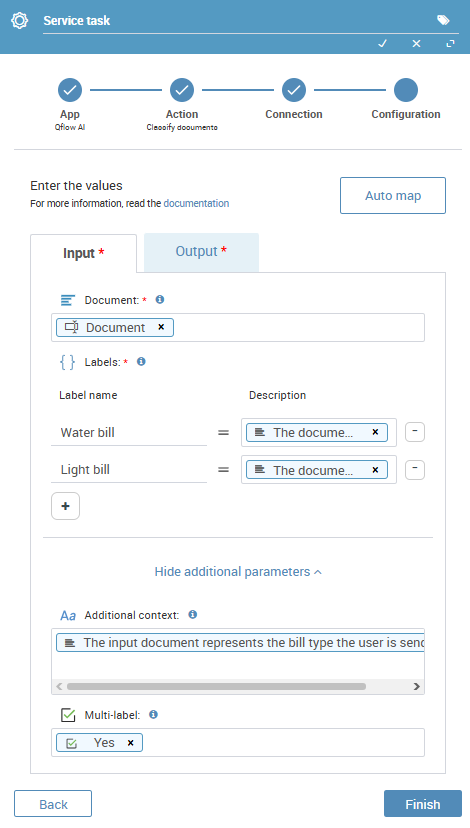
Fig. 1312 Input configuration for Classify document
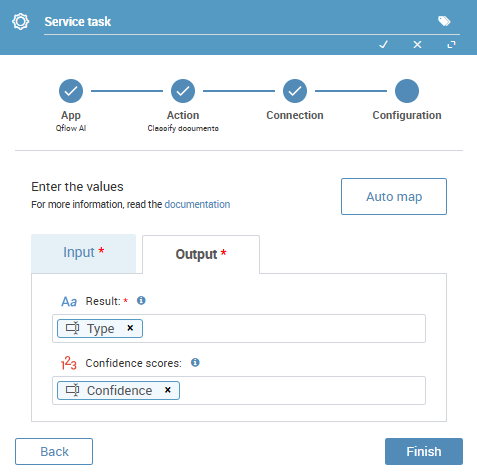
Fig. 1313 Output configuration for Classify document
Note
Qflow AI is not included in normal plans. To gain access to this functionality, contact an account executive.