v6.1
Version 6.1 of Qflow introduces new features focused on security, integrations, and improvements in process and workspace management, with special emphasis on interacting with AI tools through the MCP server and the QflowAI connector.
New MCP server for AI agents
In Qflow 6.1, the MCP server lets users interact with tasks and processes using natural language from compatible assistants, so they can handle common actions without manually navigating across different screens.
The capabilities it enables include:
Review pending tasks: check which tasks the user has, see which ones are due soon, and filter them by status, request type, date, or subject.
Understand a task before responding: open a specific task, see what it is about, and review the available responses before making a decision.
Respond to tasks from the conversation: approve, reject, or answer a task using the valid options for that case.
Work with the work queue: check the items available in the queue, review their contents, and move forward on the relevant cases without changing screens.
Track process status: check which processes the user currently has in progress, what step each one is at, and who currently has it.
Delegate work with more context: identify a task, see who it can be delegated to, and assign it to someone else without leaving the conversation.
Query views to obtain data: read and browse views configured in Qflow to look up business information and use it as context when making decisions or starting actions.
Start processes: see which processes the user can start, complete the required information, and launch common requests such as a leave request.
Follow up after starting a request: check who currently has the process and what status it is in after it has been started.
Add attachments: attach documents, images, or any type of document during the interaction to complete tasks or provide documentation without leaving the conversation.
Custom storage per workspace
Each workspace can now independently define the default storage for its attachments. This means that, in environments with multiple workspaces, they no longer need to share a single global configuration, and each organization can use the option that best fits its scenario.
The effective per-workspace configuration supports the storage modes already available in Qflow: database storage, platform-provided blob storage, and customer-owned blob storage. In the latter case, each workspace can use its own connection settings to store new attachments in its own storage account.
If a workspace has not customized this setting, the effective behavior remains aligned with the previous model and new attachments continue to be stored in the platform-provided blob storage.
This change applies only to new files. Existing attachments remain in their current location and continue to be accessible, since Qflow determines where to read each file from based on the information recorded in the attachment when it was uploaded, regardless of the workspace configuration in effect at the time of reading.

Fig. 1 Attachment storage per workspace
Delete groups from user editing
Until now, for a user to stop belonging to a group it was necessary to edit that group and remove them from there. A new option is added that allows removing a user from a group directly from their own user edit screen, without having to go into the corresponding group.
This change simplifies the group administration flow, making it possible to manage a user’s membership in their groups from a single place.
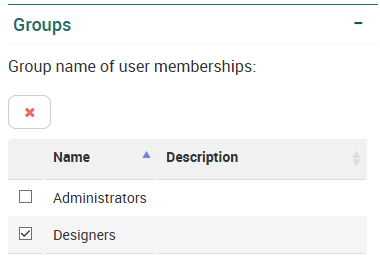
Fig. 2 Delete group from user editing
Formula Step 2.0
The formula step has been updated to make formulas easier to build and maintain in a more interactive and visual way. This improvement simplifies how operations are defined, provides more clarity into how each result is assembled, and at the same time expands the power of formulas to handle more complex scenarios within the process.
For more information, see the Formula task section.
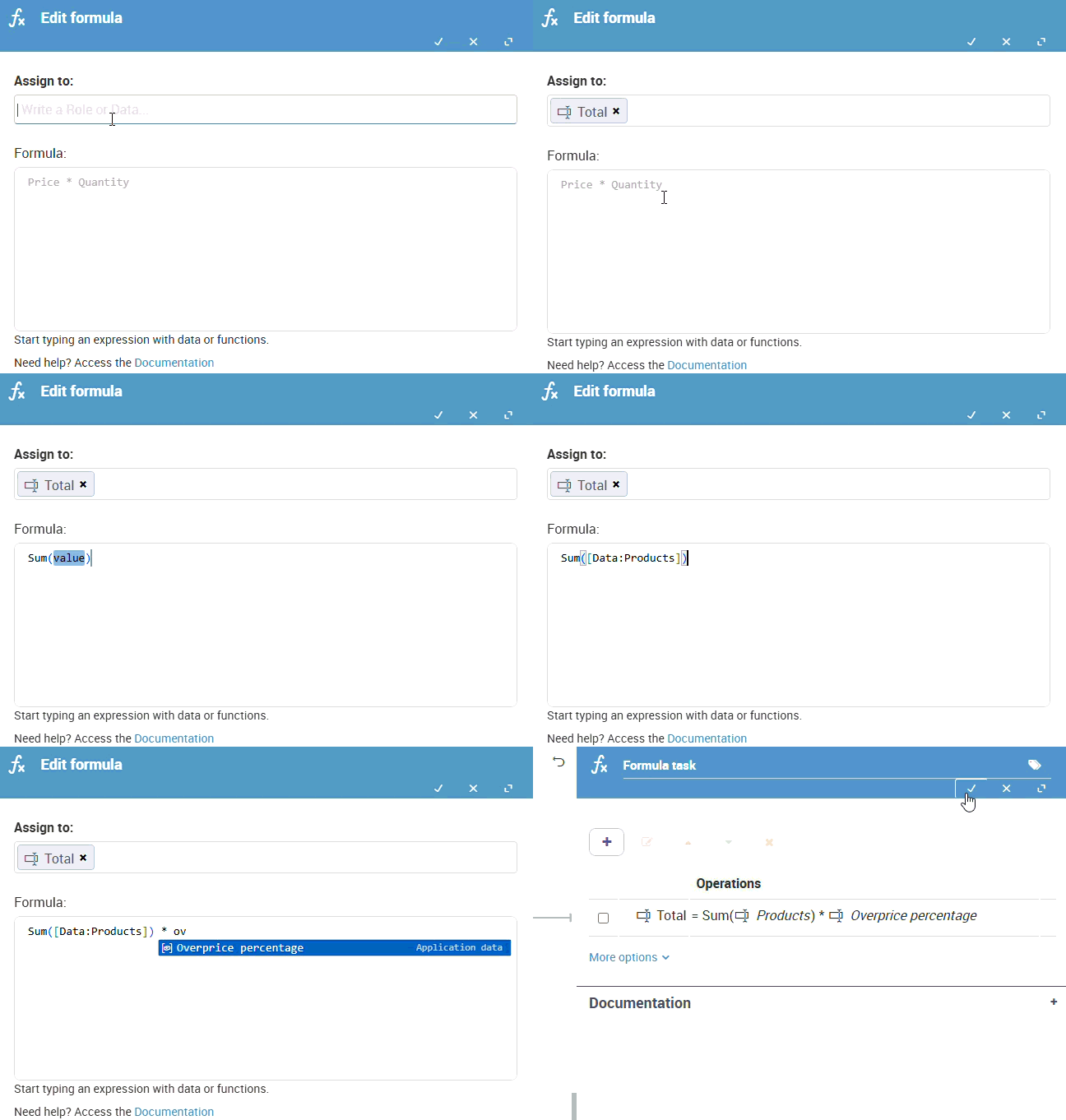
Fig. 3 Building a formula in the formula step
Custom form in View and Edit Flow
Custom forms can now be selected for the View flow and Edit flow forms, allowing extensive customization of them. This makes it possible to include messages, titles and visual improvements that make it easier to read and edit the flow information.
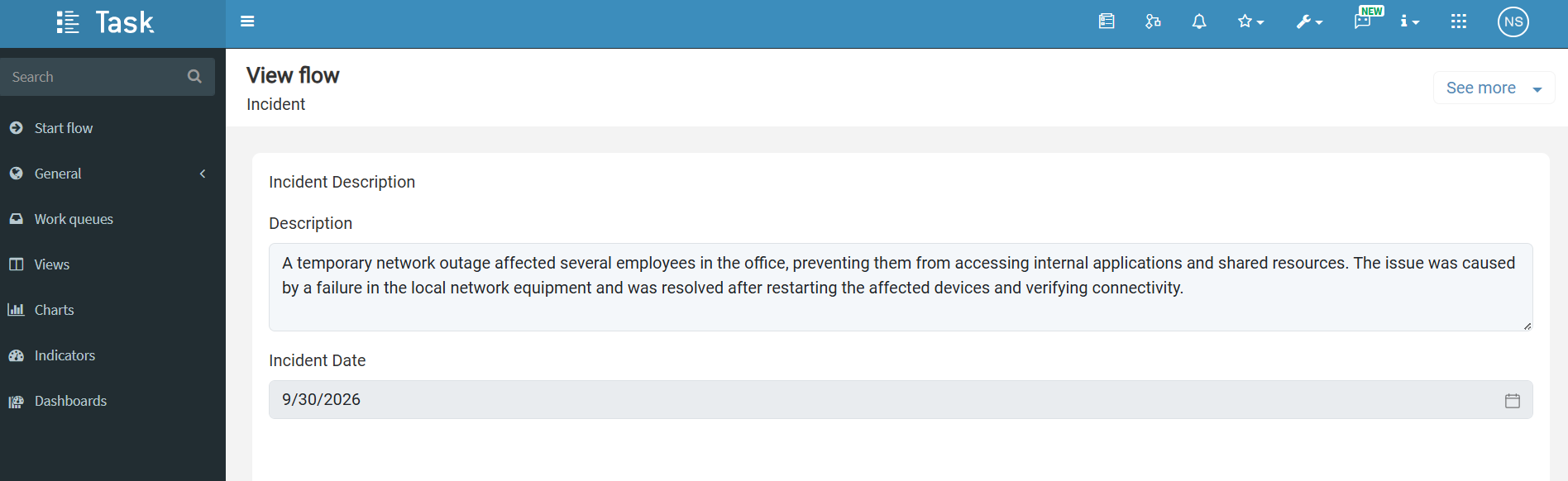
Fig. 4 Custom form in View flow
Notifications for external users
An improvement has been added that expands the reach of process communications by allowing notifications to be sent to users outside the organization as well. This makes it possible to involve clients, vendors, candidates, and other external participants more naturally, bringing them the right information at the right time without requiring them to be part of Qflow’s internal structure.
For more information, see the User notification task section.
New SharePoint connector
The new SharePoint connector includes seven actions for working with files and folders stored in SharePoint sites and libraries.
Upload file: Uploads a document to a SharePoint site, library, and path. If the path does not exist, Qflow creates it automatically. It also validates that there is a file to upload, that the site and library are valid, and that the file does not exceed 50 MB. As output, it can return the file path and URL.
Get file: Downloads a file from a SharePoint site, library, and path. If the output is not mapped to a document data field, the file is attached to the process. It also validates that the site, library, and path are valid, and that the file does not exceed 50 MB before attempting the download.
Create folder: Creates a folder in a SharePoint document library, with the option to assign properties to it. If a folder with the same name already exists at the indicated path, the existing folder is used instead of creating a duplicate.
Edit folder: Updates custom properties of an existing folder and grants edit or read-only access to email addresses, with the option to notify them by email.
Edit document: Updates custom properties of an existing document and grants edit or read-only access to email addresses, with the option to notify them by email, without altering the file’s content.
Delete file: Deletes a file from a SharePoint document library. The deleted file is moved to the site’s recycle bin.
Delete folder: Deletes a folder from a SharePoint document library, including its content. The deleted folder is moved to the site’s recycle bin.
All actions support identifying files and folders by name, location within the library, or unique identifier, and support file and folder names with special characters.
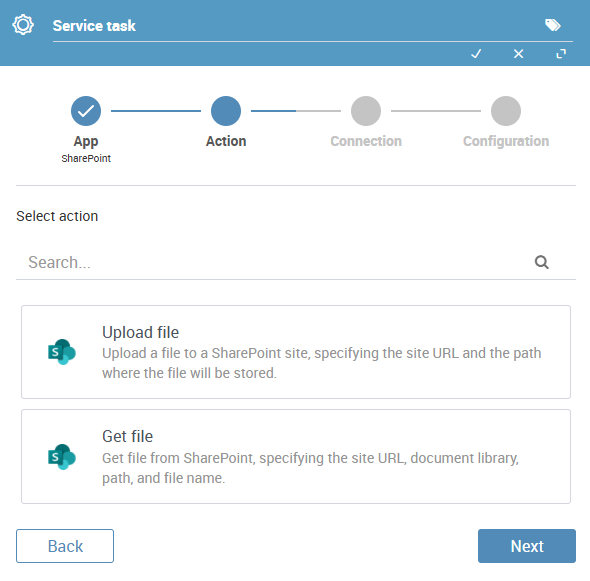
Fig. 5 SharePoint actions for uploading and getting files
New QflowAI connector
The QflowAI connector is introduced to use artificial intelligence for processing documents and text within processes. The connector can summarize documents, extract information, and classify content according to user-defined categories.
The available actions are:
Generate summary: Generates a summary of a PDF document using artificial intelligence. It can receive additional context and specify the expected summary length.
Extract data: Extracts specific data from a PDF document or image and stores it in process data. Extraction is configured through labels that indicate what information should be searched for.
Classify text: Evaluates the content of a text-type data field against a set of labels configured in the step. In addition to indicating which category applies, it can work in multi-label mode and return a confidence level for each result.
Classify document: Extends the same classification capability to document-type data, allowing process files to be analyzed with the same labels, additional context, multi-label support, and confidence output.
For more information, see the QflowAI connector.
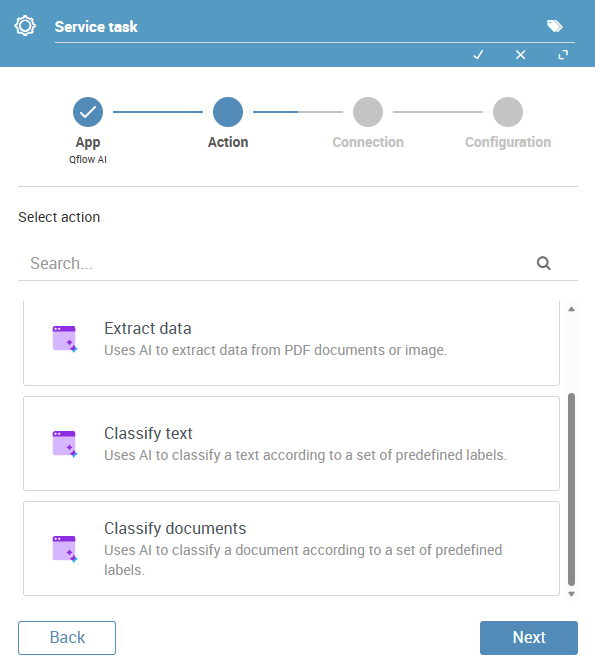
Fig. 6 QflowAI connector actions
Note
Qflow AI is not included in normal plans. To gain access to this functionality, contact an account executive.
Attach files to cards in the Trello connector
The Trello connector adds the Attach a file to an existing card action, which allows attaching to a Trello card a file taken from a document-type data field of the process.
The action receives the card identifier, which is the one returned by the Create card action, and the file to attach, which must not exceed 10 MB.
For more information, see the Trello connector.
Continue processes when signing finishes in the DocuSign connector
It is now possible to make a process advance automatically when a signature started through the DocuSign connector is completed. To do this, when configuring the send-for-signature action, the identifier of a Catch signal event step can be associated so it waits for the envelope response.
If the DocuSign connector is associated with a Catch signal event step, the process remains stopped at that step while the envelope is pending. When the envelope is completed, rejected, or abandoned, Qflow receives the notification and automatically advances the process.
If the DocuSign connector is not associated with a Catch signal event step, the process will not wait for the signature to finish and will continue running without being blocked by the envelope status.
For more information, see the DocuSign connector.