v6.0
Version 6.0 of Qflow introduces new features that enhance user experience, expand design capabilities, and improve integration with external tools.
Form Designer
A new form design tool has been added to the Design module, allowing users to build custom forms in a visual and intuitive way.
New drag & drop editor for form creation.
Ability to freely reorder data fields and roles within the form.
Roles no longer need to be grouped together — they can now be placed anywhere in the form. The same applies to the comment log.
Modern and flexible user interface.
Support for adding titles and informational messages.
Forms can be fully integrated into Qflow processes.

Fig. 7 Form Designer
New JIRA connector action: Add attachments to issue
A new action has been added to the JIRA connector, enabling users to send attachments directly from Qflow to a specific JIRA issue. This improves integration with external workflow tools.
More details available in the JIRA Cloud connector documentation.
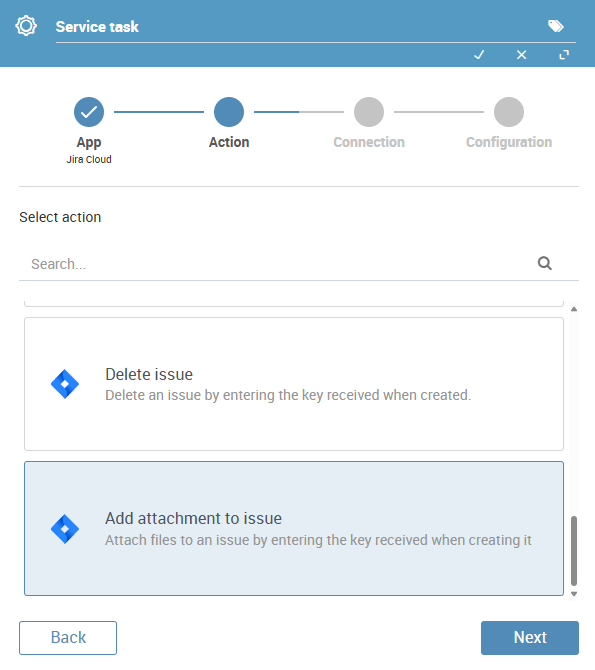
Fig. 8 JIRA
Delete completed processes
It is now possible to delete processes that have already been completed. This facilitates the management and cleanup of unnecessary or test instances and helps free up storage space.
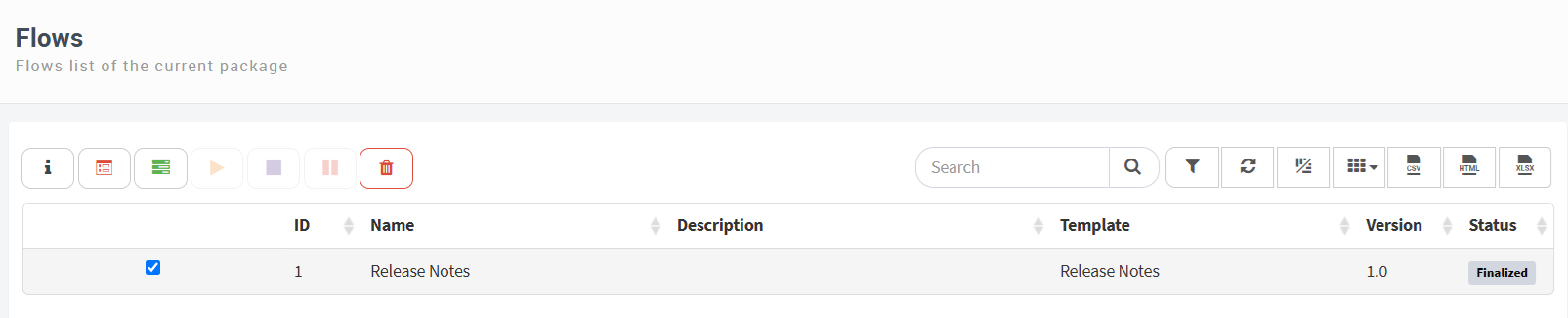
Fig. 9 Delete completed processes
New data visibility model
The concept of data visibility within forms has been redefined with a clearer and more structured approach.
The new visibility states are: Absent, Read-only, Editable, and Required.
To maintain compatibility with previous configurations (e.g., “editable read-only”), a new option has been added: “Allow value modification via code or dependency”, which enables more flexible behavior based on business logic.
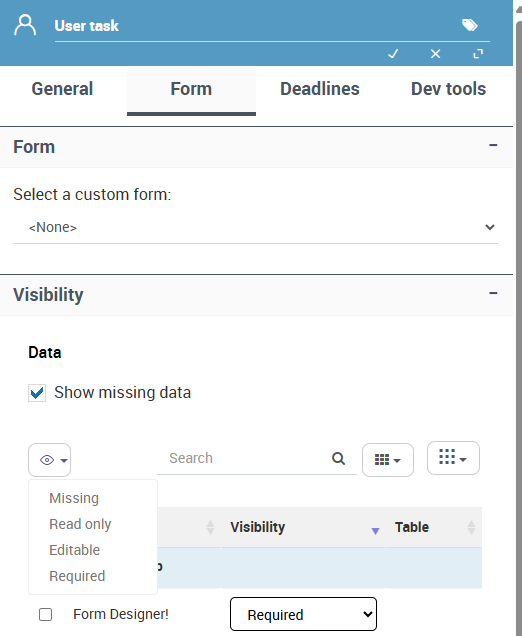
Fig. 10 New data visibility model
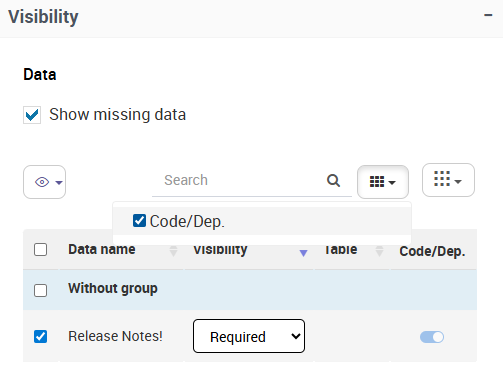
Fig. 11 Modify value via code or dependency
New connector with TuID
Four new features have been added via connectors with TuID:
Create sign process: Create a new signature process for the selected document. The connector generates a signing link that should be sent to the signer. It also returns an identifier for the signature process that can be used to check its status, download the signed document, or cancel the process.
Get document: Get a signed document from TuID by entering the signing process identifier. In case the step is executed without signing the document, the connector will return an error message.
Get sign process status: Get the status of a signing process from TuID by entering the signing process identifier. The status can be Pending, Finished, or NotFound.
Delete sign process: Delete a signing process from TuID by entering the signing process identifier. This operation permanently removes the process from TuID.
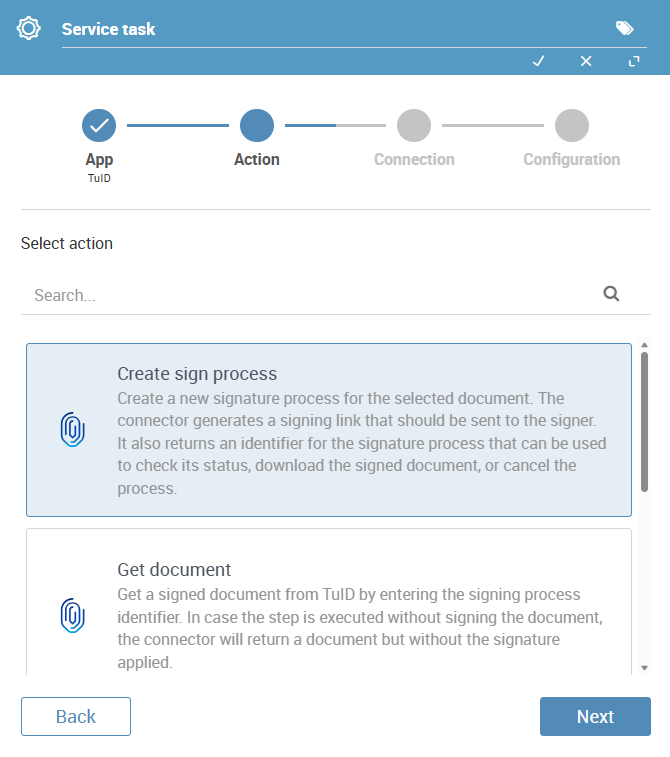
Fig. 12 Connector with TuID